
I suspect that many of us are familiar with being able to type numbers in Excel cells and then have them fill down incrementing by one (or whatever our series may be), but what if we want to use Autofill with letters, so typing A & B with Excel completing the remainder of the alphabet? Can’t be done? Well, yes it can, but you have to be sneaky…
First of all, let’s take a look at Excel’s standard Autofill options…
Excel’s Autofill feature
If we type some basic numbers into Excel, we can then select the cells we have input & then using our mouse, drag the range further down (or across) and Excel will complete the numbering for us…
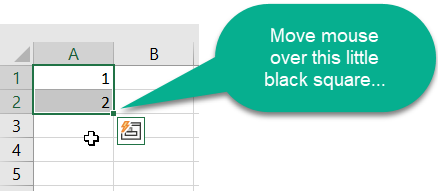


And that’s not all, Excel will also do this for days of the week and months of the year…

And, if there is data to the left of the column where you want to fill down, double clicking with your left mouse button automatically fills down to the end of your existing list

Using a right click
Whilst we’re here, if you drag numbers down with your right mouse button, you have an additional series of options…

Left click on the “Series” option and you get a number of options…
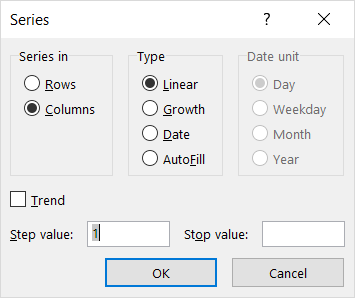
Including the ability to change the step value or at what point to stop (even if you’ve scrolled past that point). Of course, if you wanted a regular pattern (for example odd numbers, then inputting 1 & 3 will allow Excel to generate the list simply by dragging with the left mouse button…

Filling dates
You’ll have noted in one of the screenshots that date units are mentioned. So, if we have a date in a cell, then the right click becomes really useful…

… giving us the opportunity to fill with a range of date options – including every “Nth” day by changing the series interval (as above)
Autofill letters
So that’s all great, but what if you need to fill in letters… Excel doesn’t allow that (at least not initially!) so we have to use the same feature that allows it to fill the Months & Days of the Week that we did above…
The first thing is to type our own list of letters (I do both upper & lower case at the same time) …

Then, whilst one of these lists is selected (as above), on the File Tab, select Options

Then select the Advanced section❶, scroll right down to the bottom of the options❷ and select Edit Custom Lists❸

This opens up the Custom Lists dialog box with the range of cells already selected…
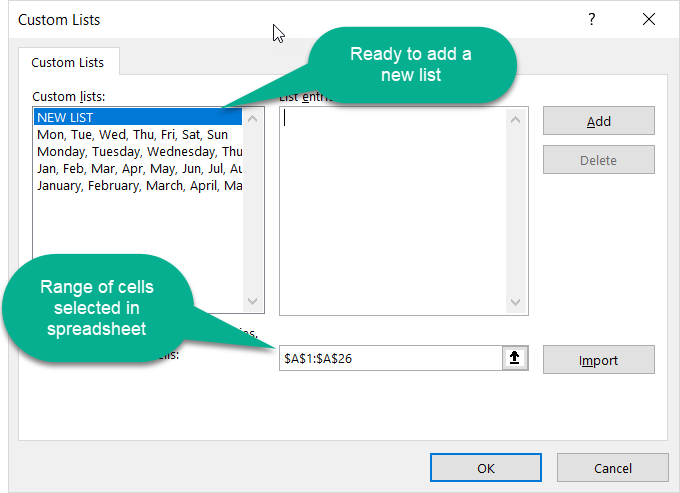
Clicking on Import, adds that list ready to use in all new spreadsheets…
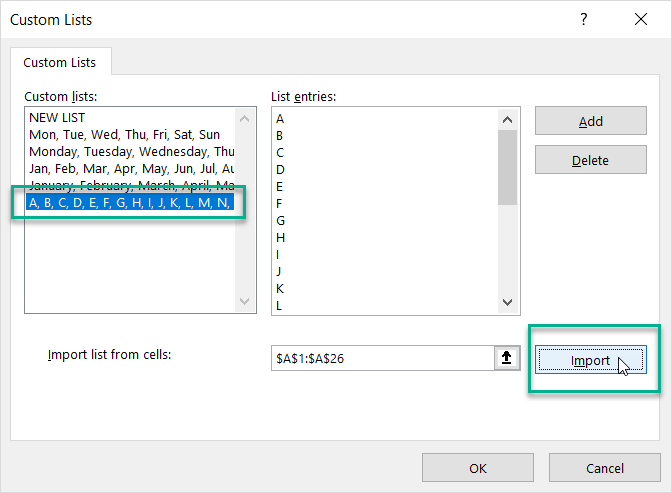
We just have to type in the first few letters & Excel will complete our list and, as with the days of the week & months of the year, we don’t have to start with the first value for this to work, so, for example, starting with a letter “D” would then give “E, F, G…” etc until “Z” & then it would start again from “A”.
This is something worth taking the time to set up if you have any series of text strings which are always used in the same order, for example product names, account headings, etc… you’ve got to do it once in your spreadsheet, so why not be able to easily reuse them?