
Many of us use PowerPoint to support the delivery of a report, talk or similar. The document has already been written (so we know what we’re talking about!), but we now need to pull together a presentation to go through the key points.
Fortunately, we don’t have to do this from scratch – provided that we’ve set up our document correctly in the first place.
Here’s how we do that…
Set up the document correctly
When writing our document, it’s really important to use Word’s Styles for headings & sub headings. These are found on the HOME tab:

I covered how to use Styles in this tip: https://us4b.co.uk/styles-in-word/ , so if you need a reminder, it’s probably worth heading there first.
So, once complete, our document will look something like this…

We can now use this to create our PowerPoint Presentation
Slides from Word Outline
First of all, we need to close our Word Document down, remembering where we’ve saved it to – in this case, it’s saved on my desktop.
We then start a blank presentation in PowerPoint…
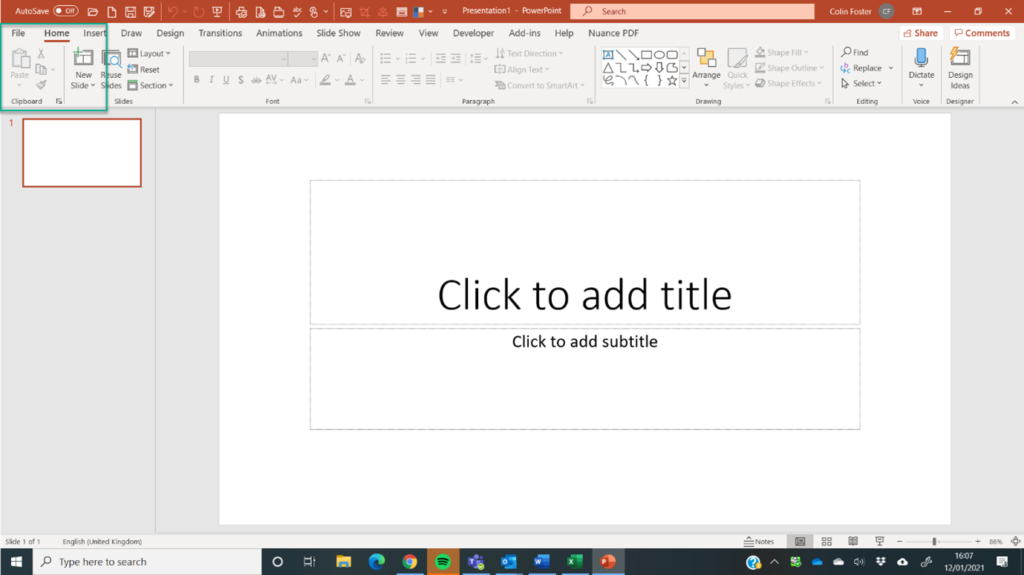
… and on the HOME tab, it’s NEW SLIDE that we need to focus on… however, rather than simply clicking the button, select the down arrow next to NEW SLIDE & this will reveal a drop down menu & at the foot of that is the option that we want: Slides from Outline

When we select this option, the INSERT OUTLINE dialog box appears & we can then select the document that we had created earlier

Selecting the file changes OPEN to INSERT which we then click.
This creates the presentation with Heading Style 1 being used for Slide Titles, Heading Style 2 used for top level bullet points and Heading Style 3 for sub-bullets.

Whilst you’ll probably need to add images & additional information before you’re ready to deliver your presentation, using the Outline to create the basics of the Presentation can save quite a lot of time.
Also, once created, you can amend the titles & bullets as you wish – the original Word document is unaffected.
