
There will be times when you create a table in Word and you find that it runs across two or more pages. In order to make the table easier to navigate and work through, it can be helpful if the header row of your table is repeated at the top of each page.
You could type this in manually, however, if you add or remove information, you may find that your “header” is no longer at the top of your document which then means that you’re in for a lot of “cutting and pasting”.
So, is there a better & more efficient way to achieve this? Of course there is! And this is how it’s done…
Repeating Row Headers
If the table has a header row, you can repeat it on the top of each page.
- Select the header row.
- Click the Layouttab in the Table Tools ribbon group.
- Click the Repeat Header Rows
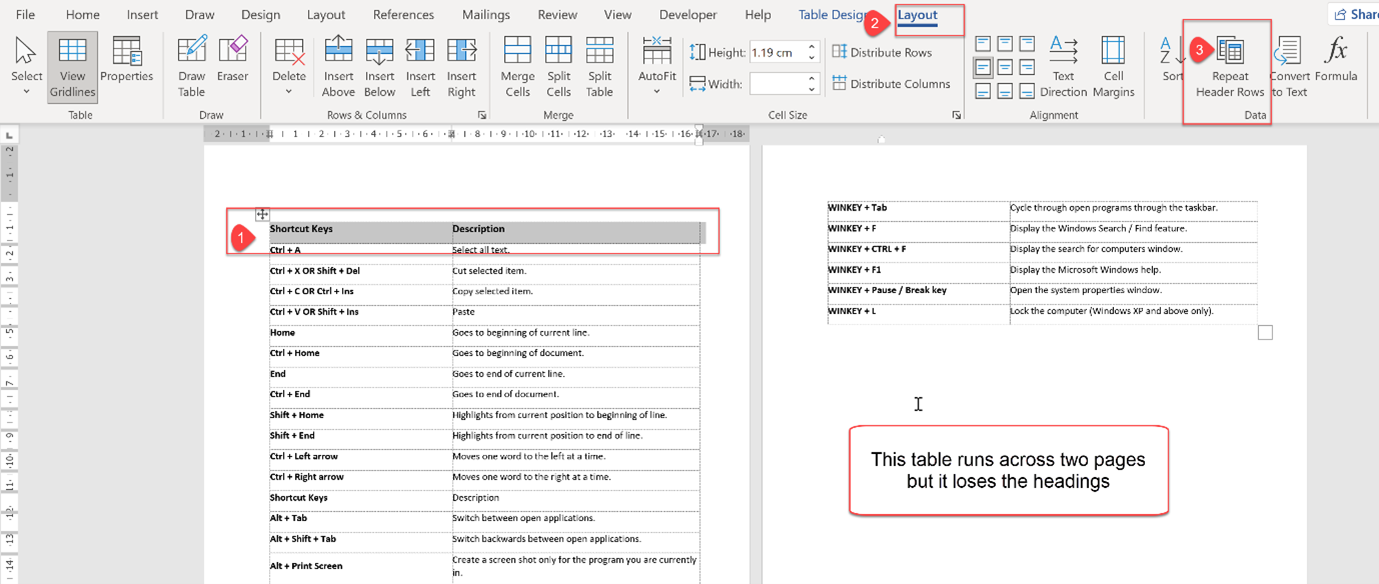
The header row will now be automatically repeated whenever the table appears across multiple pages.

- The Repeat Header Rows button is highlighted
- The Table headings are repeated
To turn this off, just click the Repeat Header Rows button again.