
There will be occasions when you’re creating a PowerPoint Presentation and you realise that you could make use of a slide (or slides) that you created in another presentation. So, rather than having to do all of the work again, let’s take a look a way that we can reuse those existing slides.
Re-use slides
The option to reuse the existing slides without opening the donor presentation can be really useful if the two presentations are image heavy and quite large in size. We’ll look at an option for smaller presentations (or those with plenty of RAM in their laptops) next time.
So, here’s a presentation that I’d written to deliver to my local Manchester Military History Society (http://www.mcrmilhist.org.uk/)…
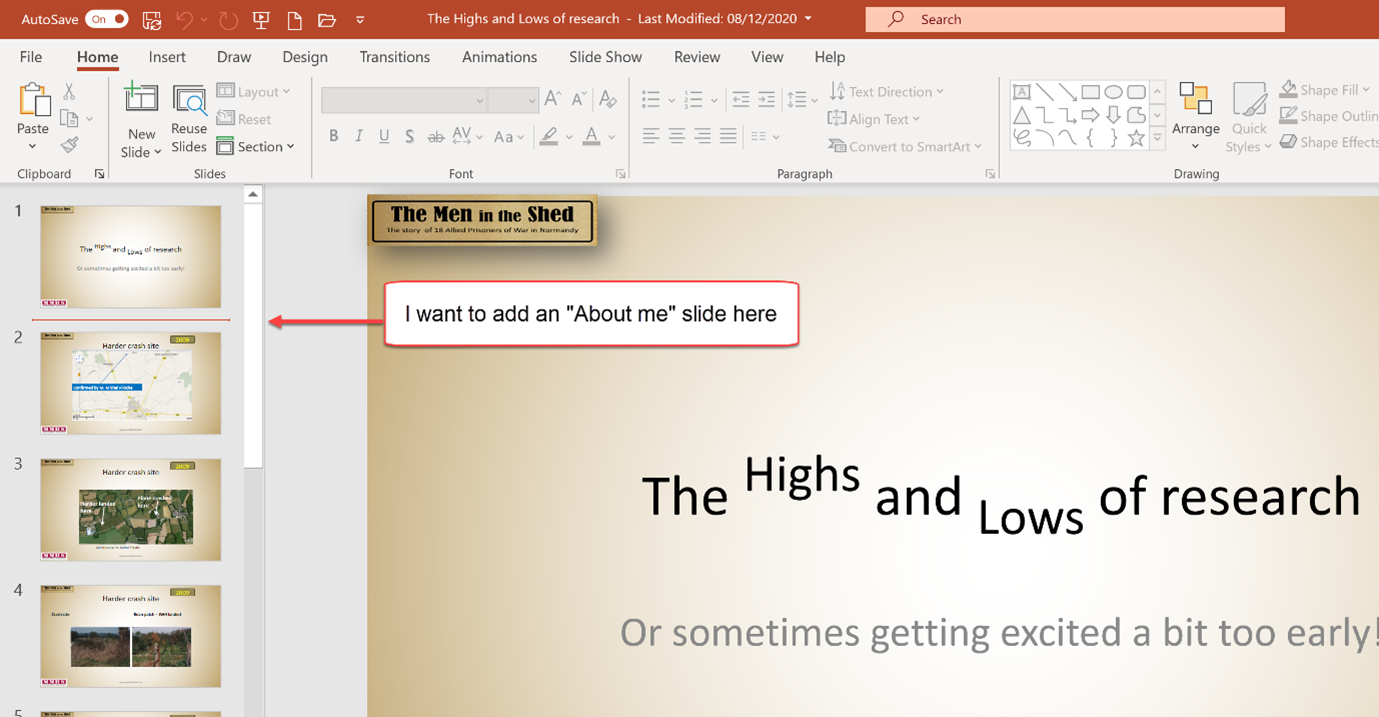
I’ve decided that I’d like to make use of an “about me” slide that I included in one of my work-based presentations as an introduction to me before starting the presentation “proper”
So, having decided where I want to insert the slide by left-clicking in the space between the two slides either side of where I want the new one to go (that’s the thin red line in the left pane of the above image), I then either select the dropdown arrow under New Slide ❶ and select Reuse Slides ❷ or simply click the Reuse Slides button on the Ribbon

Whichever method is used, this will open up the Reuse Slides Pane on the right-hand side of your PowerPoint window.
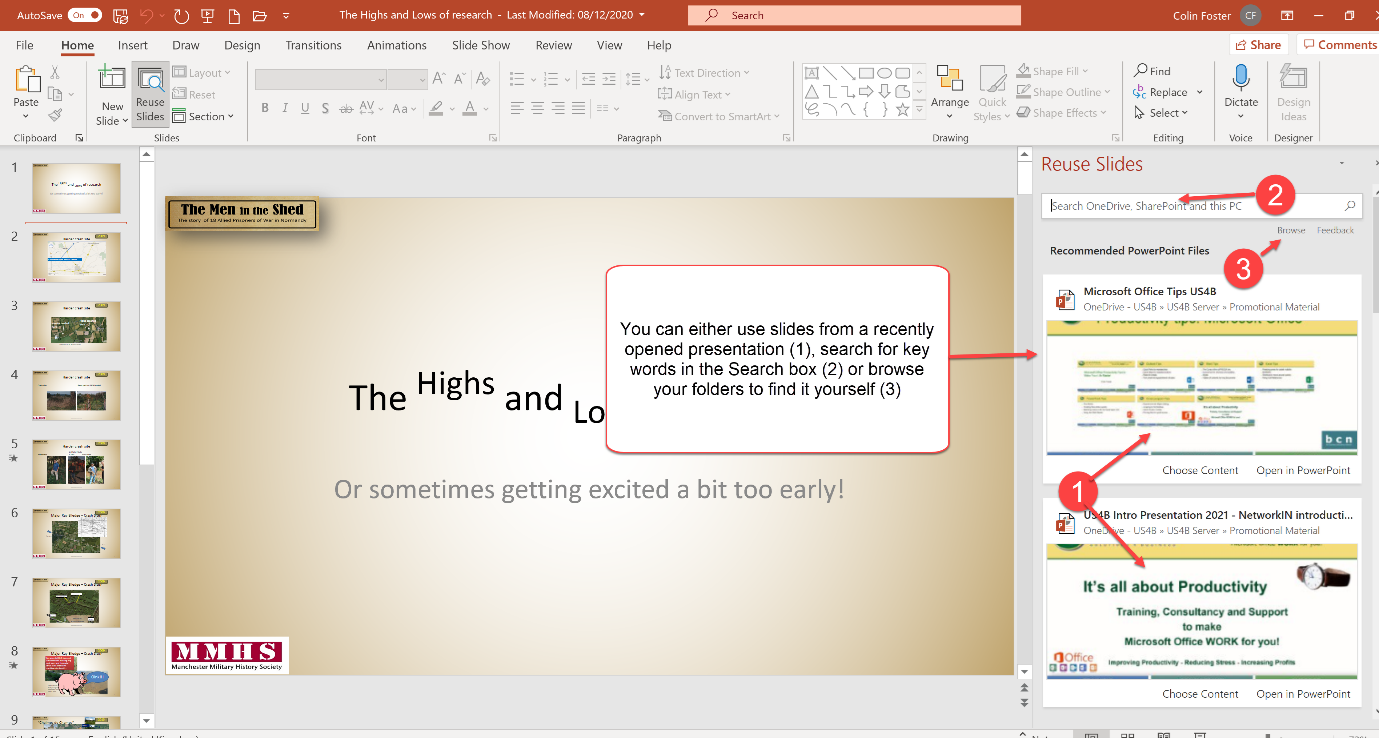
The Slide that I want is in the “It’s all about Productivity” presentation that I gave to my Team Stockport NetworkIN group (https://www.networkin.uk/view-team/?id=442). I can choose to either Choose Content or Open in PowerPoint. I’ll use the first of these, so all that I need to do is click on the presentation and it opens in the pane showing the available slides. There’s a scrollbar on the right-hand side that allows me to scroll through the presentation if I need to, but on this occasions, it’s the second slide that I want.

Finally, before clicking on the slide that I want to use, I need to make a key decision. When I import the slide, do I want it to take on the appearance that it has in the donor presentation (in this case with my logo top left, green text on a yellow border on top & contact information in the footer, or do I simply want the slide content merged into the format of the “host” presentation?
As I want the latter (considering that the “look and feel” of the two presentations is completely different), I untick the Use Source Formatting checkbox, then click on the slide and it is inserted into my open presentation.

I can then edit this slide as I see fit, perhaps resizing and moving content around…
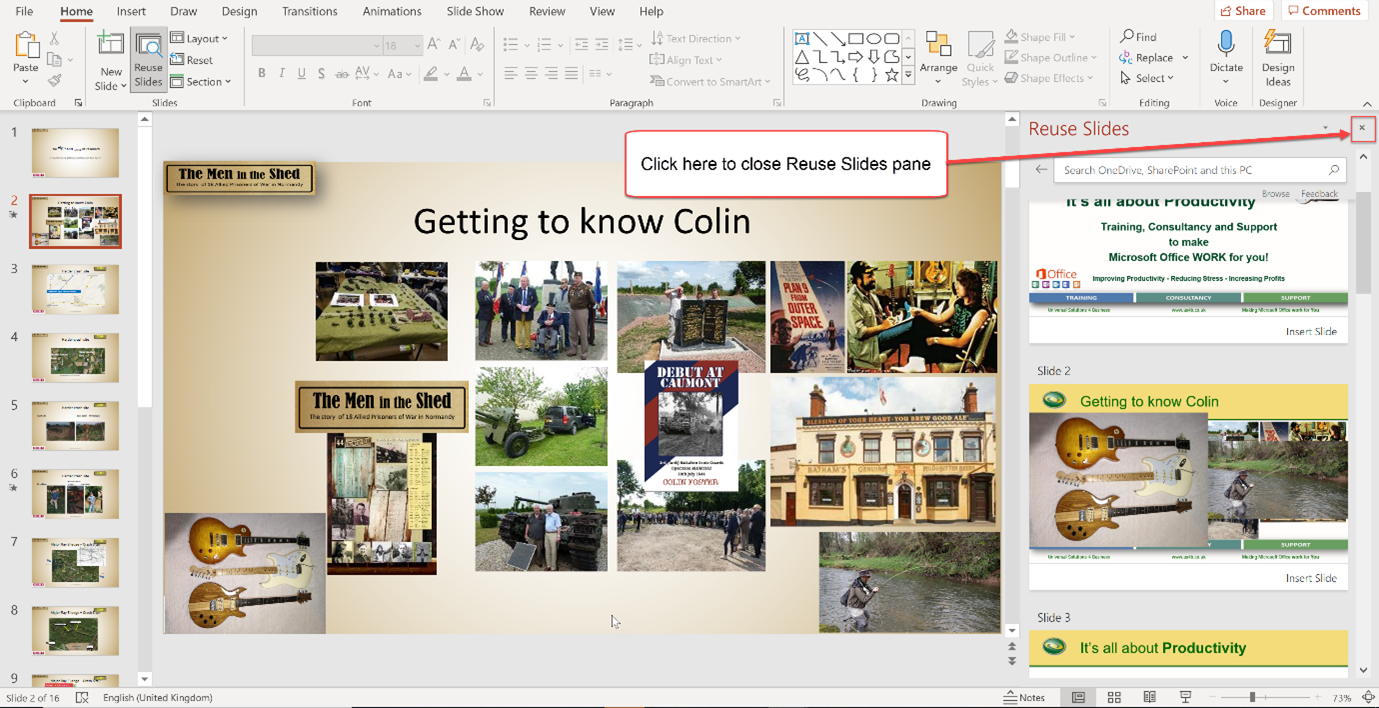
Finally, I’ll close the Reuse Slides pane.