
If you have a large number of slides that you need in your presentation, especially if they are “text heavy”, rather than simply a series of images, then using the Outline View may save you a large amount of time…
Check your version and find Outline View
Before you can use Outline View, you need to find it and that will depend on the version that you are using!
For PowerPoint 2007 & 2010, it’s on a separate Tab when you open up PowerPoint, for 2013, 2016 & Office365 versions, it’s to be found on the View Tab

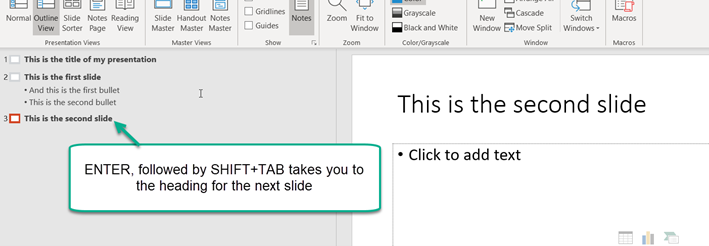
Once you’ve selected Outline view, it will look like this, your blank slide moved over and an area to the left where you can build your presentation…

Writing your presentation
You can now start writing your presentation… the first thing that you will type will be the title of your first slide

Hitting ENTER then creates your next slide where you can type your title, then pressing ENTER again, followed by the TAB key gives you your first bullet, ENTER again, gives the second bullet, etc

To create your next slide, having hit ENTER use SHIFT + TAB and you’re ready to go again…
Once your presentation is ready, you can select either Normal on the View Tab (PowerPoint 2013/2016/365) or click on the Slides tab (PowerPoint 2007/2010)
